The short answer
Test near the router and, if possible, over Ethernet. Place the router centrally and in the open, update its software, check band and interference, then add a wired access point or mesh only if coverage still falls short.
First, find out where the slowdown starts
Run a speed test close to the router, then repeat it in the troublesome room on the same device. If you can, connect a computer directly to the gateway with Ethernet and test again. A good wired result and a poor distant Wi-Fi result point toward home coverage rather than the plan itself. Tests vary by device, time of day, and test server, so repeat them rather than treating one number as definitive.
If the wired connection is also poor, restart the modem or gateway using the provider's instructions and check for a reported outage. If performance remains consistently below expectations, contact the provider with the time and results of your tests.
Keep in mind
- Test the same device in more than one room.
- Try a wired test when practical.
- Write down the time and result before changing settings.
Give the router a better position
Wi-Fi radio signals weaken over distance and through walls, floors, metal, and dense furniture. Put the router as centrally as your connection allows, elevated, out in the open, and away from large electronics and metal enclosures. A cabinet or the floor behind a television is convenient for cables but often poor for coverage.
Try moving it a few feet before buying anything. Recheck the weak room after each move. If your modem must stay by a wall outlet, a longer Ethernet cable between the modem and router may let you position the router better, depending on your equipment.
Keep in mind
- Keep vents clear and place the router in open air.
- Avoid putting it behind a TV or inside a cabinet.
- Re-test the same weak room after repositioning.
Understand the Wi-Fi bands
The 2.4 GHz band usually reaches farther and is useful for some older or low-bandwidth devices, but it has fewer channels and is more prone to congestion. The 5 GHz band offers more capacity and typically works better for nearby phones, laptops, and TVs. A 6 GHz band is available only when both your router and device support it; its reach through walls is limited.
Many modern routers choose a band automatically. If a particular device keeps choosing poorly, check the router app for band-steering or separate network options. Make one change at a time so you can tell what helped. Wired Ethernet is still a strong choice for stationary devices where a cable is practical.
Keep in mind
- Use a supported 5 GHz or 6 GHz connection near the router.
- Keep 2.4 GHz available for devices that need its range or compatibility.
- Wire stationary devices when feasible.
Reduce interference and update the basics
Neighbors' networks and household devices can share or crowd the same radio space. Let the router select a channel automatically to start; if performance is inconsistent, the router's own app may show channel or interference information. Avoid changing several advanced settings at once, and note the old setting before trying a new one.
Install router firmware updates from the manufacturer or provider. Use a strong, unique Wi-Fi password and a current security mode supported by your devices, such as WPA2 or WPA3. Change the default router admin password if you control it. Security updates and sensible settings are more important than chasing the newest Wi-Fi version.
Keep in mind
- Check for router software updates.
- Review the router's channel and band settings only when needed.
- Use a unique network password and secure admin login.
When coverage needs more than one device
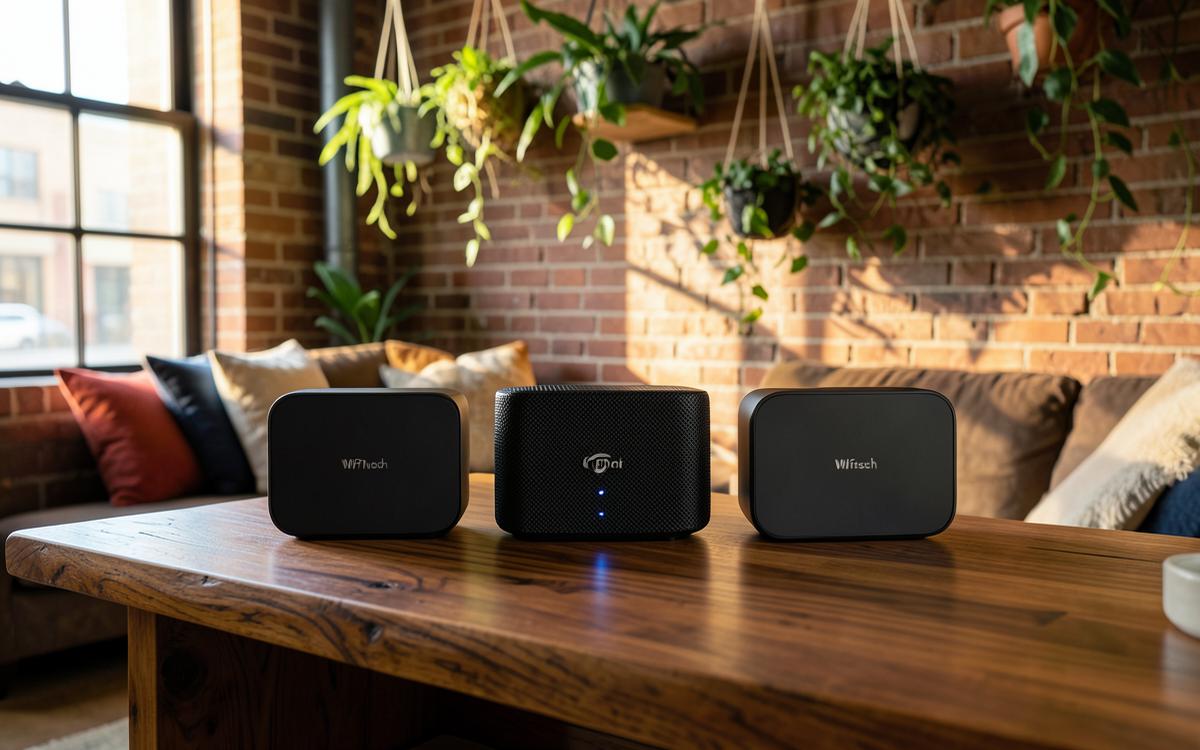
If careful placement cannot reach a distant room or another floor, consider a second access point connected by Ethernet. A wired connection between access points usually gives more predictable performance than asking a wireless node to repeat a weak signal. If wiring is not possible, a mesh system may help; place its second node where it still gets a good signal from the first, not at the very edge of the dead zone.
House size alone does not decide what to buy. Walls, layout, building materials, and the locations that matter to you are more useful clues. Before purchasing, check whether your existing provider gateway supports an additional access point, whether a mesh kit is compatible with your setup, and whether there is an ongoing rental fee.
Keep in mind
- Prefer a wired access point when you can run cable.
- Place a wireless mesh node in a strong-signal spot.
- Compare purchase costs against any monthly rental.
Questions people ask
Will a faster plan fix one weak room?
Usually not if the wired connection and nearby Wi-Fi are already healthy. Improve the home network's coverage first.
Do I need Wi-Fi 7?
Not necessarily. A well-placed compatible router can matter more than a newer standard. Check your devices, plan, and actual coverage before upgrading.
Should I buy a range extender or mesh?
First try better placement. If you need more coverage, a wired access point is often the most consistent; mesh may be simpler when you cannot run a cable.
ScoutRoo editorial guidance. Plans, fees and availability vary by address and provider. Confirm the current offer and final terms with the provider before ordering.